Gaming performance depends on balanced hardware performance. A bottleneck occurs when one component limits the performance of other components during gameplay. Many PC gamers experience low frame rates, stuttering, or delayed loading due to hardware imbalance. Graphics cards, processors, memory, and storage devices must operate at compatible speeds to deliver smooth gameplay. A single weak component can reduce overall gaming efficiency by 20% to 60% depending on system configuration. Understanding how to detect and resolve a bottleneck can restore lost performance and improve gaming stability. Keep on reading, and I will provide all you need.
What Is a Bottleneck in PC Gaming
A bottleneck in PC gaming occurs when one hardware component restricts the performance of other components. The restricted component cannot process data fast enough to match the speed of other hardware. This limitation reduces frame rate consistency and increases input delay.
Common bottleneck types include:
- CPU Bottleneck occurs when the processor cannot process game logic fast enough for the graphics card.
- GPU Bottleneck occurs when the graphics card cannot render frames as fast as the processor delivers instructions.
- RAM Bottleneck occurs when memory capacity or speed restricts data transfer between components.
- Storage Bottleneck occurs when slow drives delay game loading and asset streaming.
A balanced gaming system keeps component utilization within 70% to 95% during heavy gaming sessions.
Signs That Indicate a Gaming Bottleneck
Gaming bottlenecks produce measurable performance symptoms. Identifying these symptoms helps confirm the presence of hardware limitations.
Common signs of a gaming bottleneck include:
- Low Frame Rates Despite Powerful Hardware
Frame rates remain below expected values even with modern components. - High CPU Usage With Low GPU Usage
CPU utilization remains above 90%, while GPU usage remains below 60%. - High GPU Usage With Low CPU Usage
GPU utilization remains above 95%, while CPU utilization stays below 50%. - Frequent Stuttering During Gameplay
Frame pacing becomes inconsistent during intense scenes. - Delayed Texture Loading
Game textures appear slowly or load during gameplay.
Frame rate drops of 15% to 40% often indicate noticeable bottleneck behavior.
How to Identify Which Component Causes the Bottleneck
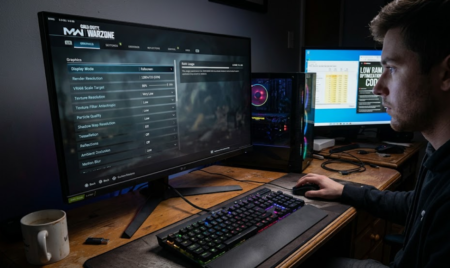
Component monitoring provides accurate identification of bottleneck sources. Monitoring software displays usage percentages, temperature values, and clock speeds during gameplay.
Steps to identify bottleneck components:
- Install monitoring software such as MSI Afterburner or HWMonitor.
- Launch a demanding game that stresses system resources.
- Observe CPU usage, GPU usage, RAM usage, and disk activity.
- Identify the component that reaches 95% to 100% utilization consistently.
- Compare usage patterns across multiple gaming sessions.
CPU bottlenecks occur when processor cores reach full usage while GPU usage stays below 80%. GPU bottlenecks occur when graphics utilization remains above 95% during gameplay.
Reduce CPU Bottleneck in Gaming
CPU bottlenecks occur frequently in systems that use older processors with modern graphics cards. The processor must calculate physics, artificial intelligence, and player input before frames reach the graphics card.
Methods to reduce CPU bottleneck include:
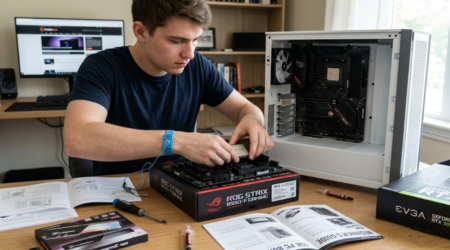
Upgrade the Processor
Processor upgrades provide the most direct performance improvement. Modern gaming processors operate between 3.5 GHz and 5.8 GHz base and boost frequencies. Higher clock speeds improve instruction execution rates.
Recommended processor attributes include:
- Minimum 6 cores and 12 threads for modern games
- Base clock speeds above 3.5 GHz
- Cache size above 16 MB
Processor upgrades can increase frame rates by 25% to 70% depending on game requirements.
Overclock the CPU
CPU overclocking increases operating frequency beyond factory limits. Higher clock speeds allow faster processing of game calculations.
Safe CPU overclocking requires:
- Adequate cooling solutions
- Stable motherboard power delivery
- Monitoring temperatures below 85°C (185°F)
Stable overclocking typically increases performance by 5% to 15%.
Reduce Background Applications
Background software consumes CPU cycles that reduce gaming performance. Closing unused programs frees processing resources.
Programs that commonly affect CPU usage include:
- Web browsers with multiple tabs
- Antivirus scans
- Video streaming software
Reducing background activity can recover 5% to 10% CPU performance.
Reduce GPU Bottleneck in Gaming
GPU bottlenecks occur when graphics rendering demands exceed the graphics card capability. Modern games require powerful GPUs to render high-resolution textures and lighting effects.
Methods to reduce GPU bottleneck include:
Lower Graphics Settings
Graphics settings directly influence GPU workload. Lowering demanding settings reduces rendering complexity.
Recommended settings adjustments include:
- Reduce texture quality from ultra to high
- Lower shadow resolution
- Disable motion blur effects
- Reduce anti-aliasing levels
Lowering high-end graphics settings can improve frame rates by 15% to 35%.
Adjust Resolution Settings
Higher screen resolutions increase pixel rendering load. Lower resolution reduces GPU workload significantly.
Resolution impact examples:
- 1920 × 1080 (Full HD) requires about 2.07 million pixels
- 2560 × 1440 (QHD) requires about 3.68 million pixels
- 3840 × 2160 (4K UHD) requires about 8.29 million pixels
Reducing resolution from 4K to 1080p can improve frame rates by 40% to 80%.
Upgrade the Graphics Card
Graphics card upgrades provide major improvements in rendering performance. Modern GPUs support advanced shading techniques and higher memory bandwidth.
Recommended GPU attributes include:
- Minimum 8 GB VRAM for modern titles
- Memory bandwidth above 300 GB/s
- Core clock speeds above 1.5 GHz
GPU upgrades often increase gaming frame rates by 50% to 120%.
Improve RAM Performance to Reduce Bottlenecks
RAM performance affects data transfer speed between processor and graphics card. Insufficient RAM capacity causes system slowdowns and stuttering.
Methods to improve RAM performance include:
Increase RAM Capacity
Modern games require large memory capacity for texture storage and background assets.
Recommended RAM capacities include:
- 16 GB RAM for standard gaming systems
- 32 GB RAM for high-end gaming systems
- Minimum speed of 3200 MHz
Increasing RAM from 8 GB to 16 GB can improve performance by 10% to 30%.
Enable Memory XMP Profiles
Extreme Memory Profile (XMP) settings increase RAM speed automatically. Faster memory improves data transfer rates between components.
Typical RAM speed ranges include:
- Default speeds: 2133 MHz to 2666 MHz
- XMP speeds: 3000 MHz to 3600 MHz
Enabling XMP improves gaming responsiveness and reduces latency.
Improve Storage Speed to Reduce Bottlenecks
Storage performance affects loading times and texture streaming speed. Slow drives delay asset loading and reduce gameplay smoothness.
Methods to improve storage performance include:
Upgrade to Solid-State Drives
Solid-State Drives (SSD) provide faster read and write speeds than traditional Hard Disk Drives (HDD).
Typical storage speed comparisons include:
- HDD read speed: 80 MB/s to 160 MB/s
- SATA SSD read speed: 450 MB/s to 550 MB/s
- NVMe SSD read speed: 1500 MB/s to 7000 MB/s
Upgrading from HDD to NVMe SSD reduces loading time by 50% to 80%.
Maintain Free Disk Space
Low storage capacity reduces drive efficiency. Maintaining sufficient free space supports faster data access.
Recommended storage practices include:
- Maintain at least 15% to 20% free disk space
- Remove unused game files
- Perform periodic disk cleanup
Free disk space improves read performance stability.
Adjust In-Game Settings to Balance System Load
Game configuration settings allow manual control of workload distribution. Balanced settings reduce stress on weak components.
Recommended in-game adjustments include:
- Reduce view distance settings
- Disable real-time ray tracing when GPU utilization exceeds 95%
- Limit frame rate to monitor refresh rate
- Enable dynamic resolution scaling
Frame rate limiting reduces unnecessary GPU usage and stabilizes performance.
Maintain Proper Cooling to Prevent Thermal Bottleneck
Thermal bottlenecks occur when hardware temperature exceeds safe limits. High temperature reduces clock speeds automatically.
Methods to maintain cooling efficiency include:
Clean Internal Components
Dust accumulation blocks airflow inside computer cases. Reduced airflow increases internal temperature.
Recommended cleaning practices include:
- Clean fans every 2 to 3 months
- Remove dust from heatsinks
- Replace thermal paste every 12 to 24 months
Proper cleaning reduces CPU temperature by 5°C to 15°C.
Improve Airflow Design
Airflow direction affects cooling efficiency. Balanced airflow removes heat efficiently.
Recommended airflow configuration includes:
- Front intake fans
- Rear exhaust fans
- Top exhaust ventilation
Improved airflow reduces temperature spikes during gaming sessions.
Use Frame Rate Synchronization to Reduce Performance Issues
Frame synchronization technology reduces screen tearing and improves visual stability. Synchronization maintains consistent output timing between GPU and monitor.
Common synchronization methods include:
- V-Sync reduces screen tearing but increases input delay.
- Adaptive Sync adjusts refresh rate dynamically.
- Fast Sync reduces latency compared to traditional synchronization.
Frame synchronization stabilizes frame pacing and reduces stuttering.
Upgrade Power Supply to Maintain System Stability
Power supply units provide stable voltage to system components. Insufficient power delivery creates performance instability.
Recommended power supply attributes include:
- Minimum 500 W to 750 W output for mid-range gaming systems
- 80 Plus Bronze or higher efficiency rating
- Stable voltage rails within ±5% tolerance
Stable power supply performance supports consistent hardware operation.
Keep System Drivers Updated
Device drivers control communication between hardware and software. Outdated drivers reduce compatibility with modern games.
Recommended driver maintenance practices include:
- Update graphics drivers every 30 to 60 days
- Install motherboard chipset updates
- Verify compatibility with new game releases
Driver updates improve system efficiency and reduce unexpected crashes.